 By Stephanie Taylor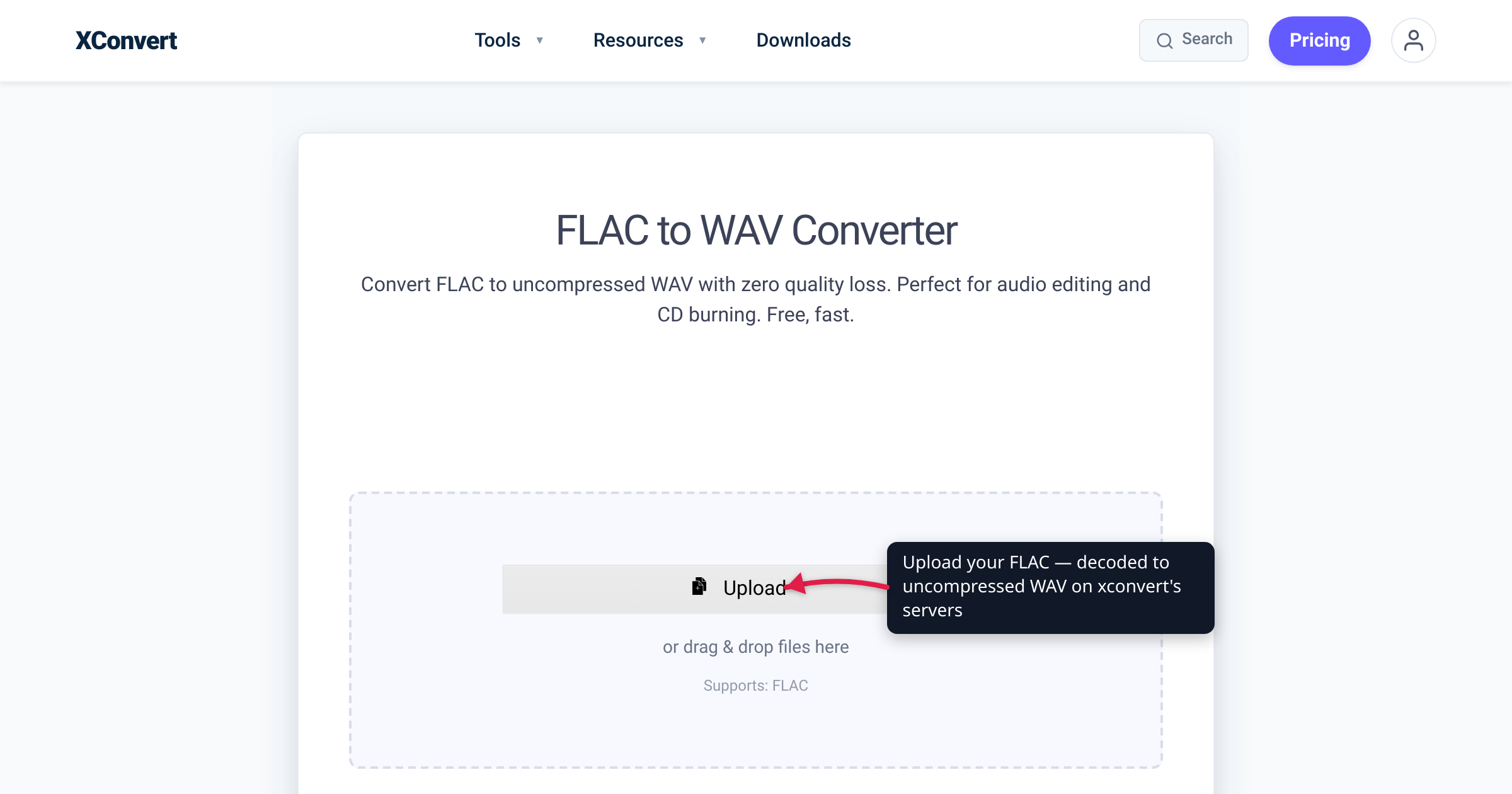
A crate full of FLACs is the right way to store music — lossless, verifiable, about half the size of raw audio. It’s not always the right thing to hand to your gear. Club-standard CDJs one generation back don’t decode FLAC at all, Pro Tools won’t import it, and an audio-CD burn needs plain PCM. The fix is converting FLAC to WAV — and because both formats are lossless, it’s the rare conversion with no quality decision to make: the audio that comes out is exactly the audio that went in. We verified the format guarantees against the FLAC specification (RFC 9639), player support against Pioneer DJ / AlphaTheta’s own documentation, and the DAW story against Avid’s — including the one thing that doesn’t reliably survive the trip.
Quick answer: FLAC → WAV is lossless to lossless — decoding a FLAC reproduces the original audio samples exactly, so the WAV sounds identical and no quality is gained or lost. The cost is size: expect the file to roughly double (FLAC at default settings averages ~52% of the original size on CD audio). Convert when the destination wants WAV: older CDJs (the CDJ-2000NXS2 plays FLAC; the previous-generation CDJ-2000NXS lists only MP3/AAC/WAV/AIFF), Pro Tools (WAV/BWF is its native format; FLAC isn’t in Avid’s import list), and CD burning (audio CDs are 16-bit/44.1 kHz PCM). Keep the FLACs afterwards — WAV tagging is unreliable, so artist and artwork metadata may not survive.
Jump to a section
- What “lossless to lossless” actually means
- How much bigger will the WAV be?
- Who actually needs WAV: CDJs, DAWs, CD burning
- Metadata: the one thing that may not survive
- Convert FLAC to WAV on xconvert
- FAQ
What “lossless to lossless” actually means
FLAC (Free Lossless Audio Codec) is compressed PCM audio. Its specification — now an IETF standard, RFC 9639, which the FLAC project’s own format page defers to — is explicit that the compression works “without losing information” and that decompressing “returns exactly the original data.” A FLAC file even carries the receipts: an MD5 checksum of the raw audio in its header, plus CRC checksums on every frame, so a decoder can verify it reconstructed the original samples.
WAV is the same PCM audio without the compression — samples stored raw in a RIFF container. So FLAC → WAV isn’t a re-encode with quality settings to agonize over; it’s an unpack, closer to extracting a ZIP than to making an MP3. Three practical consequences:
- No quality loss. The WAV contains the same samples the FLAC encoded.
- No quality gain either. Unpacking can’t add information that was never there — a 128 kbps MP3 someone wrapped in FLAC is still a 128 kbps MP3 at heart. (FLAC already being compressed is also why zipping it achieves nothing — see Is FLAC already compressed?.)
- Round trips are audio-safe. FLAC → WAV → FLAC reproduces the same samples every time. The thing that can fray is metadata, covered below.
How much bigger will the WAV be?
Plan for roughly double. In Hydrogenaudio’s long-running lossless-codec comparison (last revised August 2023), FLAC at default settings compresses a CD-audio test corpus to 52.0% of the original size — so unpacking to WAV multiplies the file by about 1.9×. The exact factor is content-dependent: quiet, sparse recordings compress harder (bigger relative growth back to WAV), dense loud masters less.
WAV’s size itself is pure arithmetic — sample rate × bit depth × channels:
| PCM format (stereo) | Bitrate | Per minute | Per hour |
|---|---|---|---|
| 16-bit / 44.1 kHz (CD quality) | 1,411 kbps | ~10.6 MB | ~635 MB |
| 24-bit / 48 kHz | 2,304 kbps | ~17.3 MB | ~1.04 GB |
| 24-bit / 96 kHz (hi-res) | 4,608 kbps | ~34.6 MB | ~2.07 GB |
Two size traps worth knowing:
- The 4 GB wall. WAV’s RIFF container uses 32-bit addressing, which the EBU’s file-format specification pins at a hard 4,294,967,296-byte ceiling — about 6¾ hours of CD-quality stereo, but only around 2 hours at 24-bit/96 kHz. A marathon liveset recording in hi-res can genuinely hit it. (The broadcast industry’s fix, RF64, is a separate format most consumer tools don’t write.)
- Wrong direction? If the goal is smaller files — phone storage, sharing — you don’t want WAV at all; that’s the lossy direction: convert FLAC to MP3.
Who actually needs WAV: CDJs, DAWs, CD burning
The DJ booth. This is the classic reason. FLAC support in Pioneer DJ / AlphaTheta players is a generation feature, and you don’t control which generation is installed where you play:
| Player | Plays FLAC? | Per the manufacturer |
|---|---|---|
| CDJ-2000NXS2 | Yes | Plays FLAC and ALAC alongside MP3, WAV, AAC, AIFF, with a “96 kHz/24-bit sound card” for hi-res playback |
| CDJ-2000NXS (previous generation) | No | Spec lists “MP3, AAC, WAV and AIFF files stored on USB devices” — FLAC absent |
| XDJ-XZ | Only after updating | FLAC playback added by the March 2020 firmware 1.10 (44.1/48 kHz, 16-bit/24-bit) |
A USB stick of WAVs plays on all of the above, and on older players besides. That’s the whole calculus: FLAC is the library format, WAV is the show format. If you can’t confirm the booth runs FLAC-capable, updated players, export WAV and skip the 4 a.m. surprise.
DAWs and samplers. Avid’s compatibility documentation lists Pro Tools session audio as Broadcast Wave (.wav) or AIFF, and its supported file types span WAV/BWF (including RF64/BW64), AIFF, MXF, MP3, AAC/ALAC, and QuickTime audio — FLAC appears nowhere in the list, so convert before the session, not mid-flow. Many modern DAWs do open FLAC, but WAV is the one format that every DAW, hardware sampler, and audio-import dialog ever shipped understands.
CD burning. An audio CD is 16-bit/44.1 kHz stereo PCM — the “Red Book” standard (formally IEC 60908), unchanged since the format’s 1982 debut, per the Library of Congress. Burning software has to produce exactly that, and WAV input gives it nothing to trip on. Note the flip side: even if your FLACs are 24-bit/96 kHz, the disc comes out 16-bit/44.1 kHz no matter what you feed the burner — hi-res masters gain nothing on a CD.
Metadata: the one thing that may not survive
FLAC has first-class, standardized tagging: RFC 9639 defines a Vorbis comment block for text tags (artist, title, album…) and a dedicated Picture block for embedded artwork.
WAV has no single equivalent — it has competing conventions. Tags can live in RIFF INFO chunks, or in an ID3v2 tag embedded in a chunk whose ID isn’t even consistent between programs (id3 vs ID3 ). Compatibility testing by the music-metadata project found software writing RIFF INFO tags that none of the applications it tested could read back, with embedded ID3v2 as the de-facto convention — workable in some players, invisible in others, and never part of the WAV standard itself.
Practical rules:
- Expect tags and artwork to display inconsistently (or not at all) once the file is WAV — whichever converter you use.
- Keep the FLACs. Treat WAV exports as disposable copies for gear; the tagged FLAC library stays the source of truth.
- Make filenames self-identifying (“Artist – Title.wav”), so the file still reads in any browser or player list even with no tags.
Convert FLAC to WAV on xconvert
The xconvert FLAC to WAV converter runs the conversion on our servers, handles batches, and defaults to a straight unpack:
- Click Add Files and load your FLACs — From my Computer, From Google Drive, or From Dropbox. Add the whole crate at once; it’s built for batches.
- Leave Audio Channel and Audio Sample Rate on their defaults (Original) for a pure lossless unpack — the audio is decoded exactly as stored, same sample rate and channel layout.
- Change Audio Sample Rate only when the destination requires it (say, 44.1 kHz for a CD project from hi-res sources) — picking a new rate resamples the audio instead of just unpacking it. There’s also a Trim control (default Unchanged) if you only need a section, and an Advanced Options gear for the rest.
- Click Convert.
- Download each WAV individually, or grab the whole batch as a ZIP.
Files upload over an encrypted connection; each file is processed on our servers and deleted automatically a few hours later.
FAQ
Does converting FLAC to WAV lose quality?
No. FLAC is lossless compression — per its specification (RFC 9639), decompressing “returns exactly the original data.” The WAV contains the same audio samples the FLAC stored; nothing is re-encoded, so there’s no generation loss however many times you convert.
Does WAV sound better than FLAC?
No — the decoded audio is identical. A FLAC and the WAV unpacked from it produce the same PCM samples, so there is no difference in the audio itself. Long-running forum debates about WAV “sounding better” have no basis in the file contents; choose between the two on gear compatibility and file size, not sound.
Will my tags and album art survive the conversion?
Don’t count on it. FLAC has standardized tags and artwork (Vorbis comments and the Picture block, per RFC 9639); WAV tagging is fragmented across RIFF INFO chunks and non-standard embedded ID3, and compatibility testing has shown tags written one way that other software simply doesn’t read. Keep the tagged FLACs as your library and treat the WAVs as export copies.
Do CDJs play FLAC, or do I need WAV?
It depends on the generation. The CDJ-2000NXS2 plays FLAC and ALAC alongside MP3, WAV, AAC, and AIFF; the previous-generation CDJ-2000NXS doesn’t list FLAC at all; the XDJ-XZ only gained FLAC with its March 2020 firmware 1.10. WAV plays on every generation, which is why DJs export WAV when the booth is unknown.
Can Pro Tools open FLAC files?
FLAC isn’t in Avid’s supported file-type list. Pro Tools sessions natively use Broadcast Wave (.wav) or AIFF, and Avid’s compatibility documentation lists WAV/BWF, AIFF, MXF, MP3, AAC/ALAC, and QuickTime audio as supported — no FLAC. Convert to WAV first, then import.
Is there a maximum WAV file size?
Yes — 4 GB. WAV’s RIFF container addresses sizes with 32 bits, capping a file at 4,294,967,296 bytes (EBU Tech 3306). That’s roughly 6¾ hours of CD-quality stereo but only about 2 hours of 24-bit/96 kHz audio — worth knowing before you unpack a marathon liveset recording in hi-res.
Sources
Last verified 2026-07-16.
- RFC 9639 — Free Lossless Audio Codec (FLAC) — IETF specification (December 2024): the lossless guarantee (“returns exactly the original data”), MD5 + per-frame CRC integrity, and the Vorbis comment / Picture metadata blocks.
- xiph.org — FLAC format — the FLAC project’s format page, which now defers to RFC 9639 as the authoritative specification.
- Hydrogenaudio — Lossless comparison — FLAC at default settings = 52.0% of original size on the CD-audio corpus (revision 2023-08-29).
- Pioneer DJ — CDJ-2000NXS2 specifications — FLAC/ALAC support alongside MP3, WAV, AAC, AIFF; “96 kHz/24-bit sound card.”
- Pioneer DJ — CDJ-2000NXS specifications (archive) — the previous generation plays “MP3, AAC, WAV and AIFF files stored on USB devices”; no FLAC.
- Pioneer DJ news — XDJ-XZ adds FLAC playback — firmware update ver. 1.10 (March 10, 2020) adds FLAC file playback.
- AlphaTheta support — “Can I play FLAC files?” (XDJ-XZ) — FLAC supported from firmware 1.10; 44.1/48 kHz sampling, 16-bit/24-bit.
- Avid — Pro Tools Audio File Type and Session Support — sessions use BWF (.wav)/AIFF; the supported file-type list contains no FLAC.
- EBU Tech 3306 — MBWF/RF64: An Extended File Format for Audio — “The reason for the 4 Gbyte barrier is the 32-bit addressing in RIFF/WAVE… a maximum of 4294967296 bytes.”
- Library of Congress — Capturing Analog Sound for Digital Preservation (pub 137) — the CD standard since 1982: 44.1 kHz sampling with 16-bit depth (the “red book standard”).
- Hydrogenaudio — Red Book — “Red Book is the ‘popular’ name of ISO/IEC 60908,” the audio-CD standard.
- music-metadata project — RIFF/WAVE tagging — WAV tag fragmentation: RIFF INFO vs embedded ID3v2, inconsistent chunk IDs, and INFO tags written that tested applications don’t read.