 By James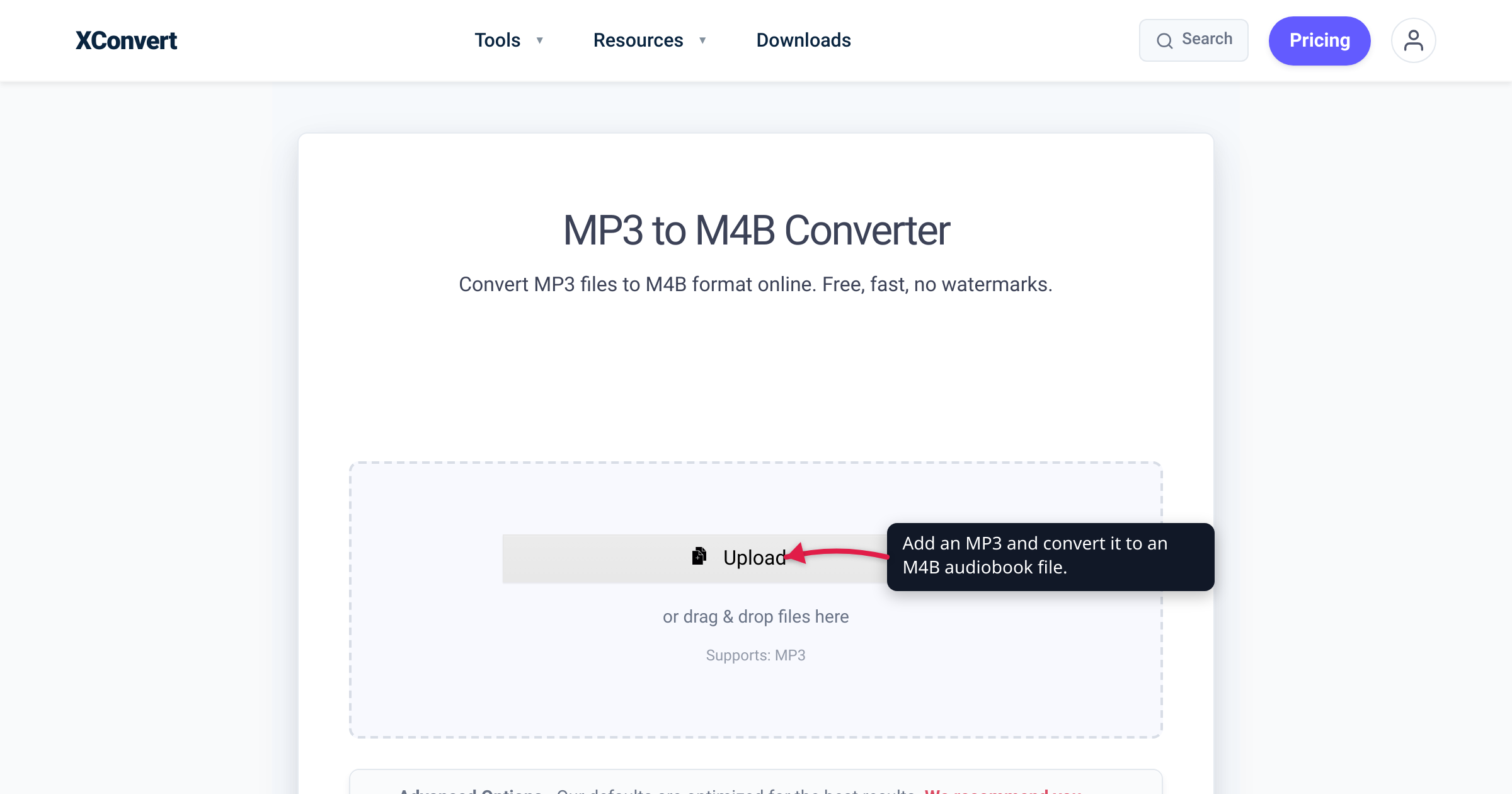
You ripped your audiobook CDs to MP3 years ago, or bought a DRM-free book that arrived as a folder of MP3s — and every time you open one on your phone, it starts from the beginning. Scrubbing an 11-hour file to find minute 43 is the fastest way to abandon a book. The fix isn’t a new app; it’s the file’s role: M4B is the extension players recognize as “audiobook,” and that recognition is what unlocks resume-where-you-left-off behavior. We verified the format facts against Apple’s own documentation and MDN — and checked exactly what the converter does, including what it honestly does not do.
Quick answer: Convert each MP3 to M4B — AAC audio in Apple’s MPEG-4 audiobook container — with the xconvert MP3 to M4B converter. Players that honor the audiobook role, Apple Books first among them, shelve the file under Audiobooks and save your listening position; Apple’s docs put it plainly: “iCloud saves your spot in a book or audiobook so you can easily pick up where you left off.” Two honest caveats: it’s one MP3 in, one M4B out — the tool does not merge files or write chapter markers (dedicated audiobook builders do that) — and MP3 → AAC is a lossy-to-lossy transcode, so pick a sensible bitrate and expect the same sound, not better.
Jump to a section
- What an M4B actually is
- MP3 vs M4B for audiobooks
- Quality: it’s a lossy-to-lossy transcode
- Chapters and merging: what this converter does and doesn’t do
- Get the M4B into Apple Books
- Convert MP3 to M4B on xconvert
- FAQ
What an M4B actually is
An M4B is an MPEG-4 audio file — the same container family as M4A and MP4 — that carries AAC audio. Structurally there is very little exotic about it. What changes everything is the extension: .m4b is Apple’s designated audiobook format. Apple’s own iTunes documentation states that “spoken program files purchased from the iTunes Store end in .m4b.”
That designation is a signal to software. When a player sees .m4b, it treats the file as a book, not a track:
- It’s filed under Audiobooks, not mixed into your music library between songs.
- Your position is saved. Close the app mid-sentence, come back three days later, and playback resumes where you stopped — Apple documents it for Books: “iCloud saves your spot in a book or audiobook so you can easily pick up where you left off.”
- Audiobook player features apply — playback speed, sleep timer, skip-back — because the app knows it’s long-form spoken word.
A plain MP3 gets none of this by default: most players treat it as a music track, and your place is remembered only if that particular app happens to track it. The format isn’t “worse” — it’s playing the wrong role.
MP3 vs M4B for audiobooks
| MP3 | M4B | |
|---|---|---|
| Role players assign | Music track | Audiobook |
| Resume / position memory | App-dependent; often restarts | Saved by audiobook-aware players (Apple Books documented) |
| Library placement | Music | Audiobooks |
| Audio codec | MP3 | AAC — “more compression with higher audio fidelity than MP3” (MDN) |
| Chapters | No standard chapter markers | Container supports chapter markers (when a tool writes them) |
| Plays on | Virtually everything, including old car stereos | iPhone/Mac natively; Windows via iTunes or VLC; Android via audiobook apps |
Convert to M4B when you listen in Apple Books (or another audiobook-aware player) and want the book filed correctly with your position remembered — especially long single-file books where losing your place is a real cost.
Stay on MP3 when the file must play on unpredictable hardware — older car stereos, basic Bluetooth speakers, dedicated MP3 players — or you’re sharing it and can’t guarantee the recipient’s player handles M4B. MP3’s superpower is that it plays essentially everywhere.
Quality: it’s a lossy-to-lossy transcode
Be clear-eyed about this: converting MP3 to M4B re-encodes the audio as AAC, and both codecs are lossy. The conversion can never sound better than the source MP3 — data the MP3 already discarded is gone. What a good bitrate choice does is keep the additional loss inaudible.
The encouraging part is that AAC is the more efficient codec — MDN’s codec guide notes it was “designed to be able to provide more compression with higher audio fidelity than MP3” — so at a matched bitrate the second-generation loss stays small. And narration is the friendliest possible content: speech stays clear at bitrates far below music norms. For calibration, MDN’s general recommendation for stereo music in AAC is 96 kbps and up, while Audible’s own delivery formats are community-reported at roughly 32–64 kbps AAC — and multi-hour books sound fine there.
Practical guidance:
- Default to the Quality Preset (Highest). For spoken word it’s comfortable headroom, and the AAC output typically lands near the source MP3’s size or below.
- Shrinking a multi-hour book? Switch to Constant Bitrate and set a modest kbps; for a single-narrator book, forcing Audio Channel to mono halves the data the bitrate has to cover.
- Don’t chase a bitrate far above the source — a 64 kbps MP3 re-encoded at 256 kbps AAC is just a bigger file with the same flaws.
The same lossy-to-lossy logic applies in the other direction too — if you ever need to go back to universal MP3, the bitrate advice in our M4A to MP3 guide carries over unchanged.
Chapters and merging: what this converter does and doesn’t do
Here’s the part most “MP3 to M4B” articles fudge, so let’s not: the xconvert converter is a per-file transcoder. One MP3 goes in; one M4B comes out, with the audio controls you’d expect (quality preset, bitrate, channels, sample rate, trim). The tool’s own page says it directly: it “does not author chapter markers or merge multiple MP3s into a chaptered book.”
What that means for the two common situations:
- Your book is one long MP3 (or a few big parts). This is the sweet spot: convert each file and you get the core M4B benefits — audiobook shelf, saved position — with nothing to install. If the book comes in parts, keep the filenames numbered (
01 - …,02 - …) so they sort in order; each part is a separate library item that remembers its own position. - You want one file per book, with named chapters. That’s a job for a dedicated audiobook builder, which handles the whole pipeline itself — merging, chapter marks, cover art, and the AAC encode. The open-source m4b-tool (a command-line ffmpeg wrapper) “merge[s], split[s]… and manipulate[s] audiobook files with chapters”; on macOS, Audiobook Builder joins your files into chapters “with custom names and artwork.”
In short: use xconvert for audiobook behavior, a builder for audiobook authoring. Chapter markers come from the authoring step — no straight MP3-to-M4B converter adds them.
Get the M4B into Apple Books
Converting is half the job; the other half is landing the file where the audiobook behavior lives.
- Mac: open the Books app and choose File > Import, then select your M4B — or drag it into the library. Apple’s import documentation covers adding audiobooks you didn’t buy from the store, and M4B is the iTunes Store’s own audiobook format; imports appear alongside your other audiobooks.
- iPhone / iPad: with the book in Books on your Mac, connect the device and use Finder sync — select the device in the sidebar, click Audiobooks in the button bar, and enable “Sync audiobooks onto [device name]” (all or selected titles). That’s Apple’s documented path for non-store audiobooks.
- Windows: iTunes for Windows manages audiobooks and recognizes
.m4bas the audiobook file type; VLC also plays it (its features list includes AAC audio and the MP4 container). - Android: there’s no stock guarantee — use an audiobook player app that lists M4B support, or VLC. On Android the resume behavior comes from the app you choose, so pick one built for audiobooks.
Convert MP3 to M4B on xconvert
The xconvert MP3 to M4B converter needs no software install and no sign-up:
- Open xconvert.com/convert-mp3-to-m4b and click Upload — choose From my Computer, From Google Drive, or From Dropbox — or just drag and drop the MP3 onto the page.
- Open Advanced Options. The defaults are tuned for good results; click Show All Options if you want every control visible.
- Under File Compression, keep Quality Preset (default Highest, selectable down to Lowest) — or switch to Constant Bitrate / Custom Bitrate to set an exact kbps for the AAC output. A Specific file size mode is there too if the output must fit under a hard cap.
- Optional tweaks: Audio Channel and Audio Sample Rate (both default to ORIGINAL — mono is worth considering for single-narrator books), and Trim to cut the audio to a section.
- Click Convert (it appears once your file is added), then download the
.m4band import it into your player — for Apple Books, see the steps above. - Repeat for each part if your book came as multiple MP3s — each file converts to its own M4B.
Your MP3 uploads over an encrypted connection, is processed on our servers and deleted automatically a few hours later. No watermarks, and nothing is shared or made public.
FAQ
Does an M4B really remember where you left off?
Yes — in players that honor the audiobook role, which is the point of the format. Apple Books treats M4B files as audiobooks, and Apple documents the resume behavior: “iCloud saves your spot in a book or audiobook so you can easily pick up where you left off.” Dedicated audiobook apps on Android and Windows implement their own position memory. The format enables the feature; the player provides it — a generic music player won’t magically gain it.
Can xconvert merge multiple MP3s into one M4B with chapters?
No. The converter transcodes one MP3 into one M4B with audio controls (quality preset, bitrate, channels, sample rate, trim) — it does not author chapter markers or stitch files together. For a single chaptered book, an audiobook builder like the open-source m4b-tool or Audiobook Builder on macOS merges, writes chapters, and encodes the M4B in one pass.
Will converting MP3 to M4B improve the sound quality?
No — it’s lossy-to-lossy, so quality can only be preserved, never recovered. AAC’s better efficiency (per MDN, more compression at higher fidelity than MP3) keeps the second encode’s loss small at a sensible bitrate, and spoken word is very forgiving. Convert for the audiobook behavior, not for fidelity.
What’s the difference between M4A and M4B?
The extension — and therefore the role. Both are MPEG-4 audio containers, almost always carrying AAC. .m4a says “music track”; .m4b says “audiobook,” which is what triggers the Audiobooks shelf and saved position. Because the container is identical, renaming an existing .m4a to .m4b is a community-known trick that generally works — but an MP3 can’t be renamed that way; it’s a different codec and needs the actual conversion. For the music-side story, see our guide to converting MP3 to M4A.
How do I play an M4B on Android or Windows?
With the right app. M4B is native on iPhone and Mac. On Windows, iTunes handles audiobooks, and VLC plays M4B (it supports AAC audio in the MP4 container). On Android, stock players vary, so install an audiobook player that lists M4B support. If a device stubbornly only speaks MP3, keep an MP3 copy — you can convert M4B back to MP3 with the same workflow.
Is the M4B I create DRM-free?
Yes — the conversion adds no copy protection, account lock, or watermark; the output contains only your audio. The reverse doesn’t hold: books from commercial stores are typically DRM-protected files that a format converter can’t (and shouldn’t) unlock. This workflow is for audio you already have as plain MP3s — rips, DRM-free purchases, your own recordings.
Sources
Last verified 2026-07-16.
- Apple — Buy or download items from the iTunes Store on PC — “Spoken program files purchased from the iTunes Store end in .m4b.”
- Apple — Use iCloud to read and listen on all your devices with Books — “iCloud saves your spot in a book or audiobook so you can easily pick up where you left off.”
- Apple — Import books, audiobooks, or PDFs in Books on Mac — File > Import for non-store audiobooks (MP3 audiobooks listed); drag-and-drop import.
- Apple — Sync audiobooks between your Mac and iPhone or iPad — Finder sync steps: device sidebar → Audiobooks → “Sync audiobooks onto [device name]”.
- MDN — Web audio codec guide — AAC “designed to be able to provide more compression with higher audio fidelity than MP3”; MP4 container support; 96 kbps+ stereo recommendation.
- m4b-tool (GitHub) — open-source CLI that merges/splits audiobook files with chapters (backs the chapter-authoring alternative).
- Splasm — Audiobook Builder — macOS app that joins audio files and creates named chapters with artwork.
- VideoLAN — VLC features — AAC audio codec and MP4 container listed as supported (backs Windows/Android playback guidance).
- xconvert MP3 to M4B converter — live tool page; capability statements (single-file output, no chapter authoring/merging) and UI labels verified against the rendered page.