 By James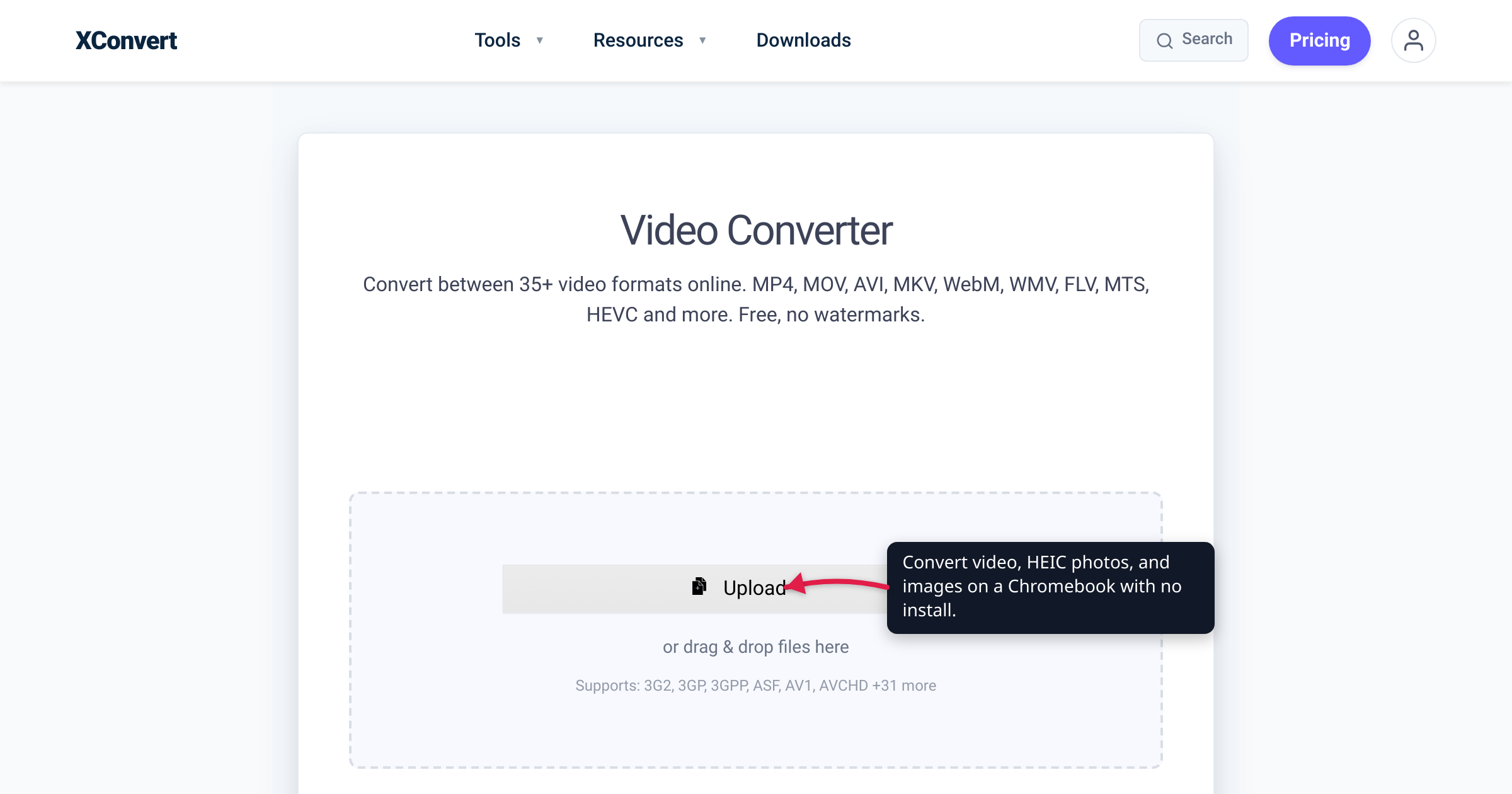
You’ve got a MOV screen recording, a folder of iPhone HEIC photos, and a stack of receipt images on a Chromebook — and the converter you’d reach for on a Windows PC or Mac, HandBrake say, simply won’t install. That’s not a bug: ChromeOS doesn’t run Windows .exe or macOS software at all. The good news is that a Chromebook’s native app is the browser, so a browser-based converter is the one route that needs zero setup. This guide shows how to convert the files you actually run into — video to MP4, HEIC to JPG, images to a single PDF — straight from the Files app or Google Drive. Every button label below was checked against the live tools, and the ChromeOS facts against Google’s own Chromebook help.
Quick answer: A Chromebook can’t install desktop converters, so use a browser-based converter — it runs in Chrome with nothing to download. Open the matching xconvert tool (Video Converter for video→MP4, HEIC to JPG, Image to PDF), click Upload and pick From my Computer or From Google Drive, choose the output format, and click Convert. Power users can instead install ffmpeg in the Linux development environment, or try an Android app — but the web tool is the no-setup path. Files convert on our servers, not on your device.
Jump to a section
- Why Chromebooks can’t run desktop converters
- Where your files live: Files app and Google Drive
- Three common conversions and the tool for each
- The honest alternatives: Linux and Android
- Convert files on a Chromebook with xconvert
- FAQ
Why Chromebooks can’t run desktop converters
ChromeOS runs three kinds of apps: web apps (anything that opens in the Chrome browser), Android apps from the Google Play Store, and Linux apps inside an optional Linux container. It does not run Windows .exe or macOS software. So the converters most people know — HandBrake and other desktop encoders — aren’t ChromeOS apps you can double-click to install.
That leaves three real options on a Chromebook:
- A web converter — works on every Chromebook, nothing to install, because it’s just a web page.
- An Android app — only on Chromebooks that have the Play Store, and many converter apps are phone-first.
- A command-line tool in the Linux environment — powerful, but a developer setup.
For a one-off conversion, the web route wins on simplicity — which is why it’s the natural fit for ChromeOS, not a compromise you settle for.
Where your files live: Files app and Google Drive
Two places hold your files on a Chromebook, and both are reachable from the ChromeOS Files app:
- My files — includes the Downloads folder, where anything you save from Chrome lands by default.
- Google Drive — mounted right inside Files, with My Drive, Shared with me, and Offline sections. Chromebooks lean heavily on Drive, so many of your photos and videos may already live there rather than on local storage.
This matters because every xconvert tool can pull a file straight from either. The From my Computer button opens the ChromeOS file picker (local files or a downloaded copy), and From Google Drive connects to your Drive directly. You don’t have to download a Drive file to the Chromebook first — you can send it to the converter and save the result back to Drive.
Three common conversions and the tool for each
Three jobs cover most of what lands on a Chromebook. Each has a dedicated tool, and the flow — Upload, pick a format, Convert — is the same across all of them.
Video → MP4. A .mov, .mkv, .avi, or .webm clip that won’t play everywhere is the classic case. Open the xconvert Video Converter, upload the clip (or pull it From Google Drive), set Pick Video File Extension to MP4, and convert. MP4 with H.264 plays on essentially any device, browser, or TV.
HEIC → JPG. iPhone photos saved to Drive arrive as .HEIC, which many web apps and editors still choke on. The HEIC to JPG converter reads them and returns universally compatible JPGs, and it batch-converts a whole folder at once. If you’re doing the same thing on a Windows PC instead, see Open and convert HEIC on Windows.
Images → one PDF. To turn a set of receipt or document photos into a single file, use Image to PDF. Its Single PDF mode (the default) merges every image into one multi-page document; Individual PDFs keeps them separate. The same single-PDF merge works from a phone or PC too — see Combine photos into one PDF.
For audio (say a .wav voice recording you want as MP3), the Audio Converter follows the identical pattern.
The honest alternatives: Linux and Android
Two non-browser routes exist, and both are legitimate — they’re just more setup.
The Linux development environment turns on a Debian container where you can install command-line tools. Open Settings → About ChromeOS → Developers, and next to Linux development environment select Set up; Google notes that “setup can take 10 minutes or more.” Once the terminal opens, sudo apt-get install ffmpeg gives you a full-power encoder for scripted or batch work. This is excellent for developers and genuinely local (the file never leaves the machine), but it’s overkill for converting a single video.
Android apps from the Play Store are an option on Chromebooks that support it — but per Google, the Play Store is “available for only some Chromebooks,” and on managed work or school devices it’s often turned off. Many converter apps are also built phone-first and feel awkward on a laptop screen.
Neither route is wrong. But if you just want a file converted right now, opening a web tool beats installing Debian or hunting the Play Store.
Convert files on a Chromebook with xconvert
Here’s the full flow, using the xconvert Video Converter as the worked example — the Image Converter and Audio Converter work identically.
- In Chrome, open xconvert.com/video-converter. It’s a web page — nothing installs.
- Click Upload, then choose From my Computer to browse the Files app, or From Google Drive to grab a file already in Drive. (You can also drag a file from the Files app onto the drop zone.)
- Under Pick Video File Extension, choose MP4 (or WebM, MOV, GIF, and others). On the image or audio converter you’d pick JPG, PNG, MP3, and so on.
- Optional: open Advanced Options (the gear icon) to resize, trim, or tune the codec and bitrate. The defaults are set for a clean straight conversion.
- Click Convert, then download the result. On a Chromebook it saves to Downloads under My files; from there you can move it into Google Drive, or set Chrome to download straight to Drive.
Your file uploads over an encrypted connection, is processed on our servers and deleted automatically a few hours later. The conversion runs on the server, not inside the Chromebook — so it isn’t offline, but nothing is kept afterward.
FAQ
How do I convert a video on a Chromebook?
Open a browser-based converter such as the xconvert Video Converter, click Upload (or From Google Drive), set Pick Video File Extension to MP4, and click Convert. Nothing installs, and it works on every Chromebook because it runs entirely in Chrome.
Does a Chromebook have a built-in file converter?
No — ChromeOS has no general-purpose format converter. There’s nothing built in that turns a MOV into an MP4 or a HEIC into a JPG the way a desktop app would. A web tool, an Android app, or a Linux command-line tool fills that gap, and the web tool is the only one that needs no setup.
Can I run HandBrake or other desktop converters on a Chromebook?
Not as ChromeOS apps — ChromeOS doesn’t run Windows or macOS software. Power users can install command-line encoders like ffmpeg inside the Linux development environment, a Debian container you enable under Settings. For a single file, though, a browser converter is far quicker than setting up Linux.
Where do converted files download to on a Chromebook?
By default to the Downloads folder inside My files in the Files app. You can move them into Google Drive afterward, or change Chrome’s download location to Drive. If you uploaded From Google Drive to begin with, saving the result back to Drive keeps everything in one place.
Can I convert HEIC iPhone photos on a Chromebook?
Yes. A HEIC to JPG converter reads the .HEIC files — from the Files app or straight from Google Drive — and returns standard JPGs you can share or edit anywhere. It batch-converts a whole folder in one pass.
Is converting in the browser as private as an offline app?
It isn’t offline: the file uploads to our servers, converts there, and is deleted automatically a few hours later, all over an encrypted connection. Nothing is retained. If you specifically need on-device processing, the Linux ffmpeg route keeps the file local instead.
Sources
Last verified 2026-07-16.
- Set up Linux on your Chromebook — Google Chromebook Help — Linux development environment path (Settings → About ChromeOS → Developers → Set up), Debian environment, “setup can take 10 minutes or more.”
- Install & use Android apps on your Chromebook — Google Chromebook Help — Play Store “available for only some Chromebooks”; may be disabled on work or school devices.
- Open, save, or delete files on your Chromebook — Google Chromebook Help — Files app structure: My files/Downloads and Google Drive.
- Use Google Drive files offline on your Chromebook — Google Chromebook Help — Google Drive mounted inside the Files app; My Drive / Shared with me / Offline.
- xconvert live tools — Video Converter, Image Converter, Audio Converter, HEIC to JPG, Image to PDF — UI labels (Upload; From my Computer / From Google Drive / From Dropbox; Pick Video File Extension; Advanced Options; Image-to-PDF Single PDF / Individual PDFs), verified 2026-07-16.